Help & Troubleshooting
Download, install and start Codex AnimaGet into the game
Fixes for the problems players meet most: browser download blocks, Windows warnings, antivirus removing game files, Smart App Control, graphics and DirectX, sign-in and connection.
Read this first
Why Windows warns about the game
Codex Anima is in closed beta. Its game files are new and not code-signed, so Windows has never seen them before and treats them with suspicion. Some antivirus programs also flag new game files by mistake.
These warnings can come back after a game update. The steps below get you past them.
Allow only the files the Codex Anima staff gave you. Never turn your antivirus off entirely: exclude just the Codex Anima folder, as shown below.
Find your problem
What do you see?
| What you see | Go to |
|---|---|
| "Insecure download blocked" or "Suspicious download blocked" in your browser | 1. The download is blocked |
| A blue window: "Windows protected your PC" | 2. Windows protected your PC |
| "Threat found", "Threat quarantined", or game files disappear | 3. Windows Security removed the game |
| "An Application Control policy has blocked this file" | 4. Smart App Control |
| Norton, Avast, AVG, Bitdefender, McAfee, Kaspersky or another antivirus blocks it | 5. Other antivirus programs |
The launcher says "The game did not start", or a .dll is missing | 6. The game did not start |
| Scrambled colours, garbage on screen, black screen, or a crash at start | 7. Graphics and DirectX |
| "Could not sign in. Check your account name and password." | 8. Signing in |
| "Realm online", but the game cannot connect | 9. Connection |
1
The download is blocked
"Insecure download blocked" means the link started with http:// instead of https://. Use the https:// link you were given, or ask the staff for a fresh one.
"Suspicious download blocked" or "isn't commonly downloaded" means your browser does not recognize the file, because few people have downloaded it. In Microsoft Edge:
- Open your downloads (Ctrl + J) and point at the blocked file. Click the three dots ⋯.
- Click Keep.
- Click Show more.
- Click Keep anyway.
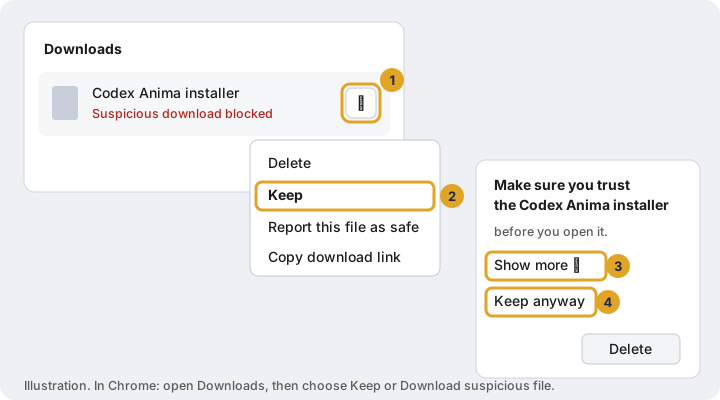
Chrome: open Downloads (Ctrl + J) and choose Keep or Download suspicious file. Firefox: right-click the file in the downloads list and choose Allow download.
Ask the staff for the zipped copy of the installer. Right-click the zip, choose Extract All, and run the installer inside. It is the same installer.
2
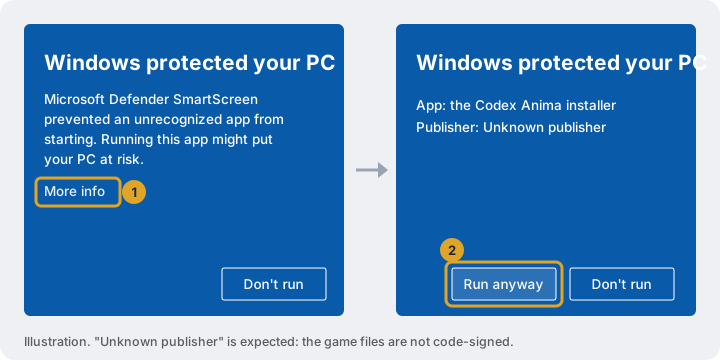
"Windows protected your PC"
This is Microsoft Defender SmartScreen. It appears for programs that are not signed and that few people have run. The game is safe to start when you downloaded it from the official address.
- Click More info.
- Check that the app is the Codex Anima installer or launcher you were given, then click Run anyway.
3
Windows Security removed or blocked the game
If Windows Security shows Threat found or Threat quarantined for the Codex Anima folder, or game files vanish after installing, do these two things in this order. First, exclude the game folder so Windows stops removing its files. Then give back what it already took.
Step A: exclude the Codex Anima folder
- Open Windows Security (search for it in the Start menu), then Virus & threat protection.
- Under Virus & threat protection settings, click Manage settings. Scroll down to Exclusions and click Add or remove exclusions. Answer Yes if Windows asks for permission.
- Click + Add an exclusion, then Folder.
- Click the address bar at the top of the folder window, paste
%LOCALAPPDATA%\Programs\Codex Anima, press Enter, then click Select Folder.
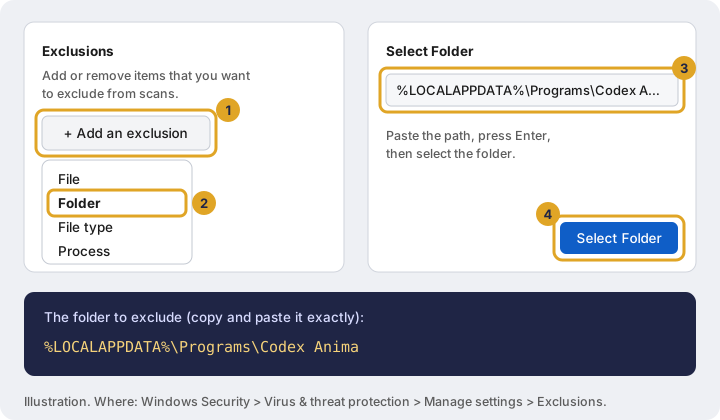
%LOCALAPPDATA%\Programs\Codex Anima.Step B: give back the removed files
- In Windows Security, open Virus & threat protection, then Protection history.
- Click the entry that names the Codex Anima folder. Open Actions.
- Choose Allow on device. If the entry says Threat quarantined, choose Restore.
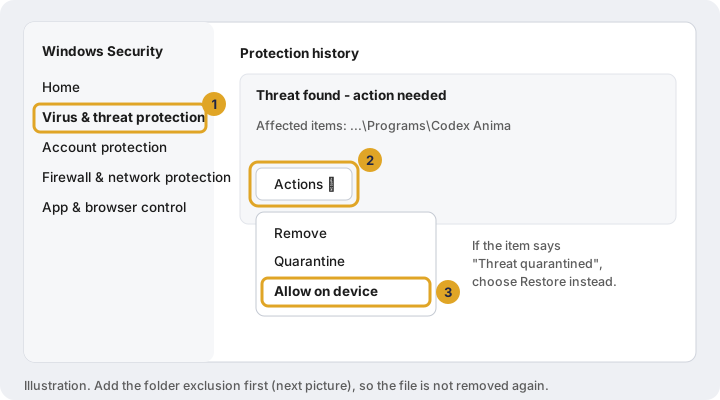
If the files still do not come back, open the launcher and click Repair files (see section 6). With the folder excluded, it puts them back.
Prefer one command? (advanced)
Open Windows PowerShell as administrator (right-click Start, Terminal (Admin)) and run:
Add-MpPreference -ExclusionPath "$env:LOCALAPPDATA\Programs\Codex Anima"This does Step A in one go. Step B is still needed if files were already removed.
4
"An Application Control policy has blocked this file"
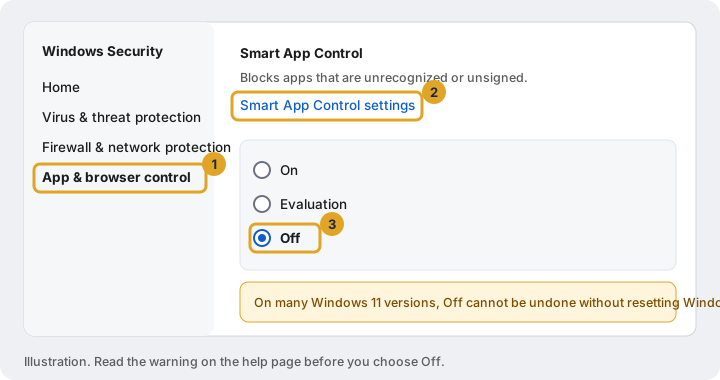
This message, sometimes followed by Malicious binary reputation, comes from Smart App Control, a Windows 11 feature that blocks programs Microsoft's cloud does not trust. Unlike the other warnings it has no "Run anyway" button and no list of exceptions, so excluding the folder does not help.
On most Windows 11 PCs, once Smart App Control is turned off it can only be turned back on by resetting or reinstalling Windows. If you would rather keep it on, the game cannot run on that PC.
To turn it off:
- Open Windows Security, then App & browser control.
- Click Smart App Control settings.
- Choose Off and confirm. Then start the launcher again.
5
Other antivirus programs
If you use Norton, Avast, AVG, Bitdefender, McAfee, Kaspersky, ESET, Malwarebytes or another antivirus, it replaces Windows Security, and the same two steps apply inside that program:
- Open the antivirus and find its Exclusions, Exceptions or Allowed apps setting (usually under Settings). Add the folder
%LOCALAPPDATA%\Programs\Codex Anima. - Open its Quarantine (Avast and AVG call it Virus Chest) and Restore any Codex Anima files. Then click Repair files in the launcher.
If the path is not accepted, browse to it instead: it is C:\Users\your user name\AppData\Local\Programs\Codex Anima. The AppData folder is hidden; paste the path into the address bar to reach it.
6
The launcher says "The game did not start"
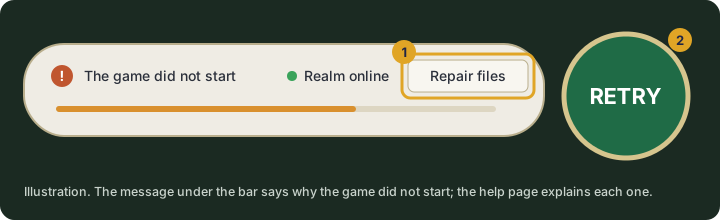
The line under the progress bar says why. Match it here:
| The message mentions | Do this |
|---|---|
| "Application Control policy" | Section 4, Smart App Control |
| "virus", "threat", or "Access is denied" | Section 3, or section 5 for another antivirus |
| a missing or damaged file | Click Repair files |
MSVCP140.dll, VCRUNTIME140.dll or another MSVC file | Install the Microsoft Visual C++ Redistributable (below) |
d3dx9_43.dll or another d3dx9 / xinput file | Install the DirectX 9 runtime (section 7) |
Visual C++ Redistributable: from Microsoft's page Latest supported Visual C++ Redistributable downloads, install both the X64 and the X86 versions, then restart your PC.
7
Graphics and DirectX
Codex Anima is a DirectX 9 game. Our client draws it through a built-in DirectX 12 bridge where your PC supports it, and directly with DirectX 9 where it does not. It picks by itself: there is nothing to choose or switch. What it needs is a current graphics driver, and Microsoft's DirectX 9 runtime files, which Windows 10 and 11 do not include by default.
Step 1: check your graphics card and DirectX
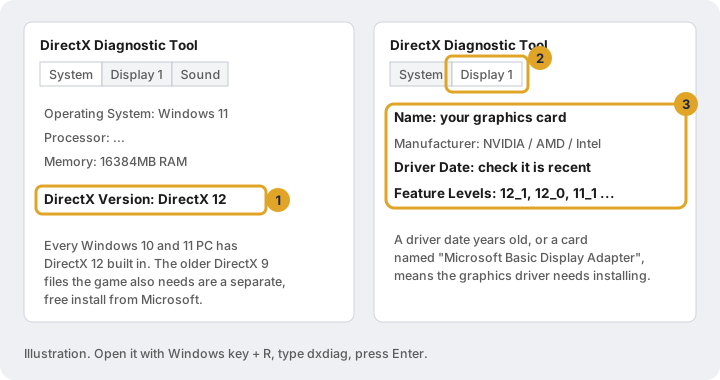
- Press Windows + R, type
dxdiag, press Enter. - On the System tab, DirectX Version should say DirectX 12. Every up-to-date Windows 10 and 11 PC has it built in: there is nothing to install for DirectX 12.
- On the Display tab, note your card's Name and Driver Date, and its Feature Levels (12_0 or higher means DirectX 12 support, which the bridge uses). A card called Microsoft Basic Display Adapter, or a driver date years old, means the graphics driver needs installing.
Step 2: install the latest graphics driver
Get it from the maker of your card, not from Windows Update:
- NVIDIA (GeForce): nvidia.com/drivers
- AMD (Radeon): amd.com support: drivers
- Intel (Arc, Iris, UHD): Intel Driver & Support Assistant
- Laptop: if the above refuses your laptop, use the driver from your laptop maker's support page.
Step 3: install the DirectX 9 runtime
Download and run Microsoft's DirectX End-User Runtime Web Installer. It adds the older DirectX 9 files the game uses, and is safe to run even if some are already installed. Untick any extra offer during setup.
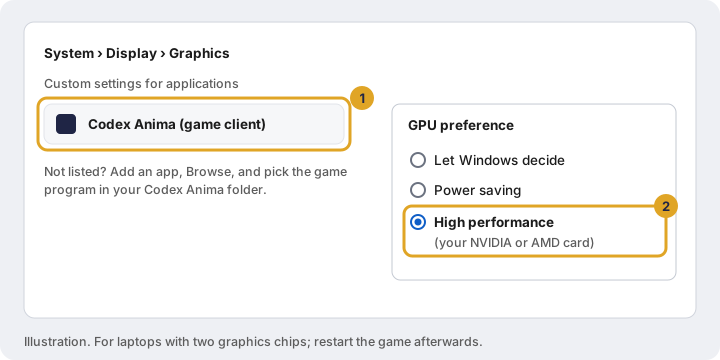
Step 4: laptops with two graphics chips
Many laptops have a power-saving chip and a faster NVIDIA or AMD card. Make sure the game uses the faster one: open Settings › System › Display › Graphics, find the game (or Add an app and browse to it in the Codex Anima folder), and set GPU preference to High performance.
Scrambled colours, garbage on screen, or a black screen
A screen full of coloured noise, with the menus still readable, means the graphics card is not drawing the game's textures. In order:
- Install the latest graphics driver (Step 2) and the DirectX 9 runtime (Step 3), then restart your PC.
- If it started right after you changed a graphics option in the game (anti-aliasing, ambient occlusion, quality), set it back. Then restart your PC: after the graphics driver has crashed and reset, it can stay broken until a restart.
- Run one copy of the game at a time, especially on graphics cards with less than 4 GB of video memory.
- Turn off overlays and screen tools while you test: Discord overlay, Steam overlay, the NVIDIA or AMD overlay, Xbox Game Bar, MSI Afterburner / RivaTuner, and ReShade. They hook into the game's graphics and often break older games.
- Click Repair files in the launcher, in case a texture file was damaged or removed by antivirus.
The renderer is new, and your report helps us fix it for everyone. Tell us on Discord with your graphics card's name and driver date from dxdiag (Step 1), a screenshot, and the game's log files AnimaRenderer.log and WeatherClient.log (staff will tell you where to find them).
8
"Could not sign in. Check your account name and password."
- Type the account name and password exactly as you were given them. Copying them is fine, but make sure no space or extra character comes along: click the eye icon in the password box to see what you typed.
- Capital letters do not matter.
- After several wrong tries, sign-in pauses for a short while. Wait a minute, then try again carefully.
- Lost your password? Ask the staff on Discord. Never post your password anywhere, not even to staff: we will never ask for it.
9
The launcher says "Realm online", but the game cannot connect
- If Windows Firewall asks whether to allow the game, choose Allow for private networks.
- Turn off any VPN or proxy while you play, then try again.
- School, work and some public networks block games. Try from your home connection.
- If "Realm online" is not green, the server is restarting or down for maintenance: watch Discord for the all-clear.
Still stuck?
Ask us on Discord
Post in our Discord with:
- a screenshot of the error (crop or blur your Windows user name if it shows),
- your Windows version (Windows + R, type
winver), - your graphics card and driver date (from dxdiag),
- which of the steps above you have already tried.
Staff will never ask for it, and nobody needs it to help you.